
How to Cross-list Your Courses in Canvas
Looking to merge or combine Canvas courses? In Canvas, this process is called cross-listing.
Cross-listing combines enrollments from two or more Canvas courses into a single parent course. Once the courses are combined, you can manage shared content, assignments, grades, and communication from the parent course.
Is cross-listing right for your courses?
Before cross-listing, make sure both of the following are true:
- The courses use identical content and assignments for the entire semester.
- You are comfortable with students from the different sections interacting with one another in Canvas.
Yes to both? Cross-listing may be a good option for your courses. Cross-listing is optional.
No to either? Contact WSU Online before cross-listing. We may be able to recommend another setup that better fits your courses.
Important: Cross-list before students begin submitting work
Cross-listing is best completed before the semester begins. If you later de-cross-list a section after students have submitted assignments or received grades, those submissions and grades may no longer be available from the original course shell.
Before you begin
- Decide which Canvas course will be the parent course. This is the course where you will manage content and student activity.
- Note the CRN of the parent course.
- Make sure all courses belong to the correct semester.
- If your department or Academic Scheduling has already cross-listed the sections in Banner, contact WSU Online before making additional cross-listing changes in Canvas.
Cross-list your courses
1. Choose the parent course
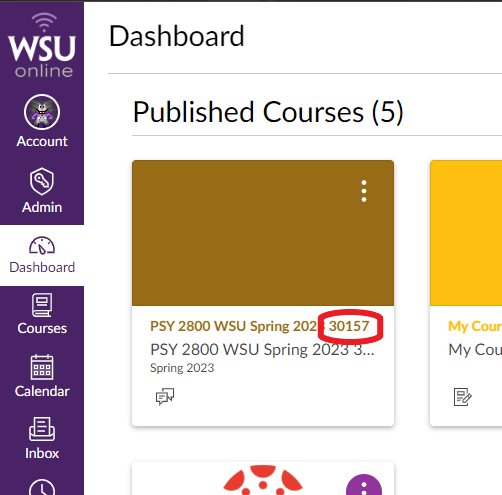
Find the Canvas course that you want the other section or sections to be combined into. This is the parent course.
The parent course may already contain course content, or it may be blank.
Note the CRN of the parent course. You will use this CRN when cross-listing the other sections.
2. Open the course you want to move into the parent course
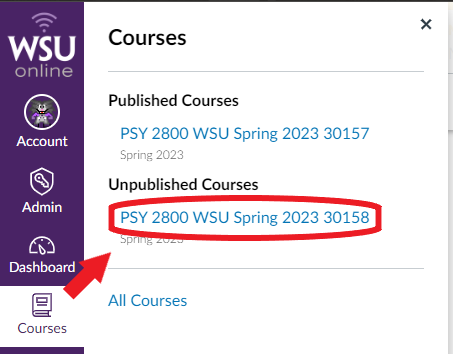
From your Canvas Courses menu, open the course that you want to cross-list into the parent course.
If you need help finding a course:
3. Open the course section
In the course you want to move:
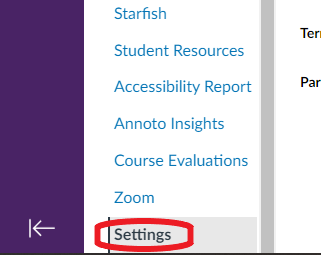
- Open Settings.
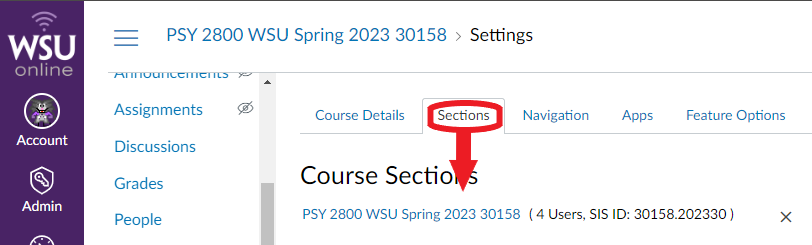
- Select the Sections tab.
- Select the section name.
4. Cross-list the section
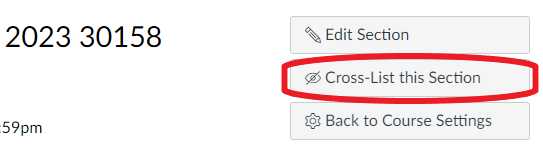
After opening the section, select Cross-list This Section on the right side of the page.
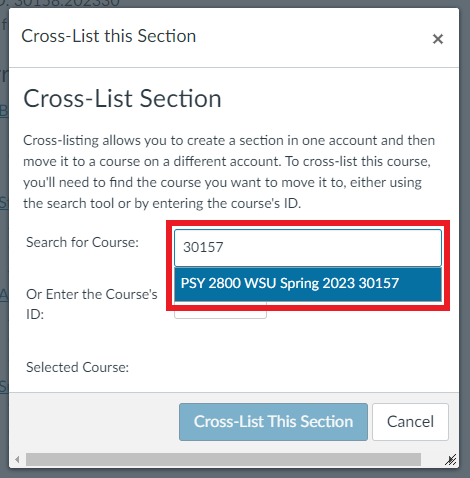
In the Cross-list This Section window:
- Begin typing the CRN of the parent course.
- Wait for Canvas to display the matching course.
- Select the parent course from the drop-down list.
Type the CRN slowly rather than copying and pasting it. Canvas must locate the course and you must select it from the drop-down list before continuing.
5. Confirm the cross-list
Once the full parent course appears in the Search for Course field, select Cross-list This Section.
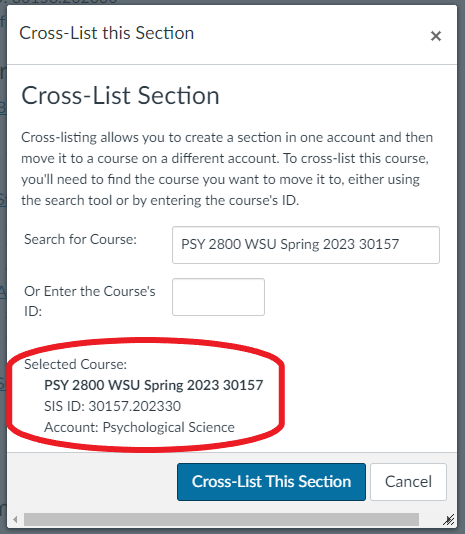
If the button does not work
Make sure you selected the parent course from the Canvas drop-down list. Typing the full CRN or course name is not enough by itself. The matching course must be selected before Canvas can complete the cross-list.
6. Repeat for additional sections
If you have additional courses to combine, return to your Courses list, open the next course, and repeat the process.
Verify your cross-listed courses
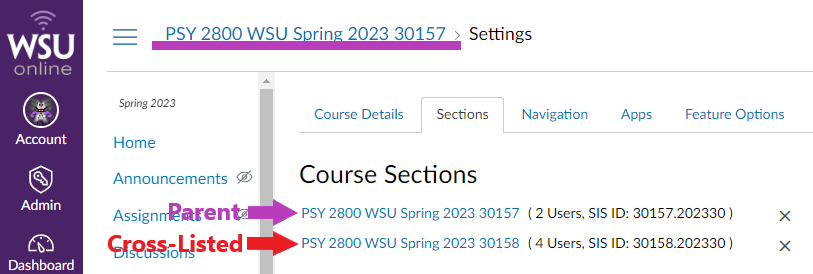
After you finish cross-listing, confirm that all expected sections appear in the parent course:
- Open the parent course.
- Select Settings.
- Select the Sections tab.
- Confirm that the parent section and all cross-listed sections appear under Course Sections.
Need help?
If you are unsure which course should be the parent, your courses were already cross-listed through Banner, or students have already submitted work, contact WSU Online before making additional changes.