
Read Your Class Schedule
To find your class schedule for the semester, start by logging on to your eWeber portal. On your portal homepage, search for the Academic Profile App. Click the app and you’ll be taken to your academic profile page.
Your profile page displays information about general topics, degree information, prior education and testing, your academic transcript, English and math placement details, and more.
On the bottom, right-hand side of the window, after the Curriculum, Hours & GPA section, you’ll find all the courses you are registered for in the current semester, as well as relevant course information, including course title, number, Course Reference Number (CRN), associated credit hours, and instructor.

At the end of the Registered Courses section, you’ll find the total number of credits you’re registered for, the billing hours, and the minimum/maximum number of credit hours you can be registered for in a semester.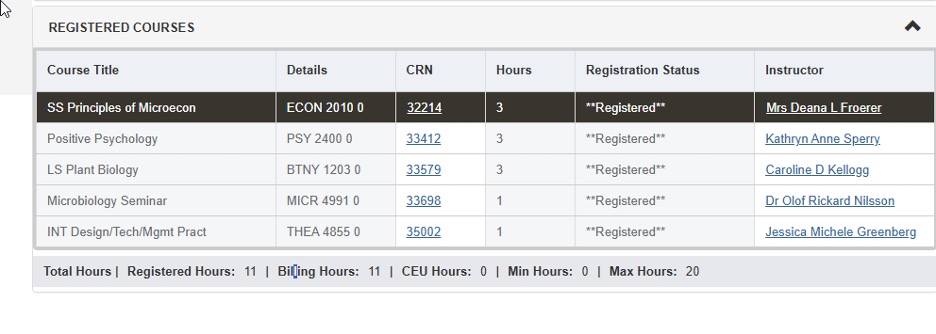
If you click the instructor’s name, a new tile with additional contact information for that instructor will appear.
Click on the hyperlinked CRN of an individual course to find out more details about the course. This will open a new window where you can navigate through different tabs displays of information for the class that you’re registered in. By default, the window opens on “Class Details” where you can find the term, CRN, campus location, schedule type, subject, course number, and title of the course.
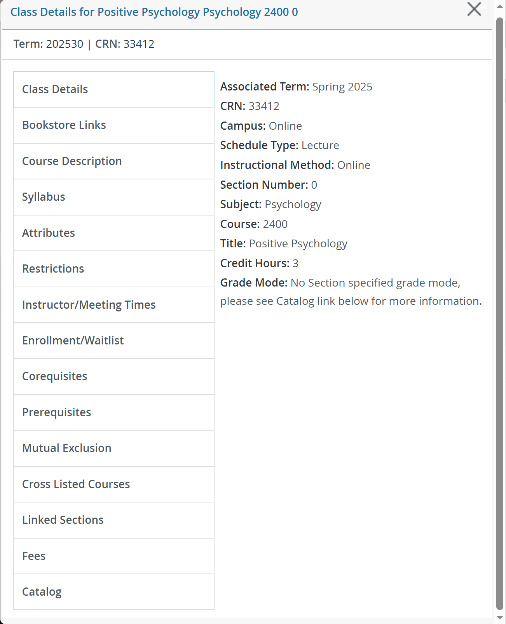
By clicking on each tab, you can find additional details about your class. For example, in the Instructor/Meeting Times tab, you'll see on a calendar what days of the week you’ll be meeting, for how long, and what time, room, and campus the class will be meeting at.
If you couldn’t register for a class and are on the waitlist, under the Enrollment/Waitlist tab you’ll see information related to the class’ enrollment details such as the maximum enrollment, how many seats are available, and how many people are on the waitlist for that class.
Under the Attributes tab, you can see the attributes associated with your class and where that class might slot into your major’s degree requirements.
The Catalog tab goes into these assigned attributes even further. Here you can see the course title, credit hours, the options for grading modes, and the schedule type. Additional tabs have more information.
If you have additional questions, contact registration@weber.edu or 801-626-6100.