
Mac Self Service Guide
Purpose of this Guide
This guide is meant to instruct an end user on the methods used to request new software for Self Service installation, how to install available software via Self Service, and how to report any issues with Self Service applications or installations.
Installing applications via Self Service
Step 1
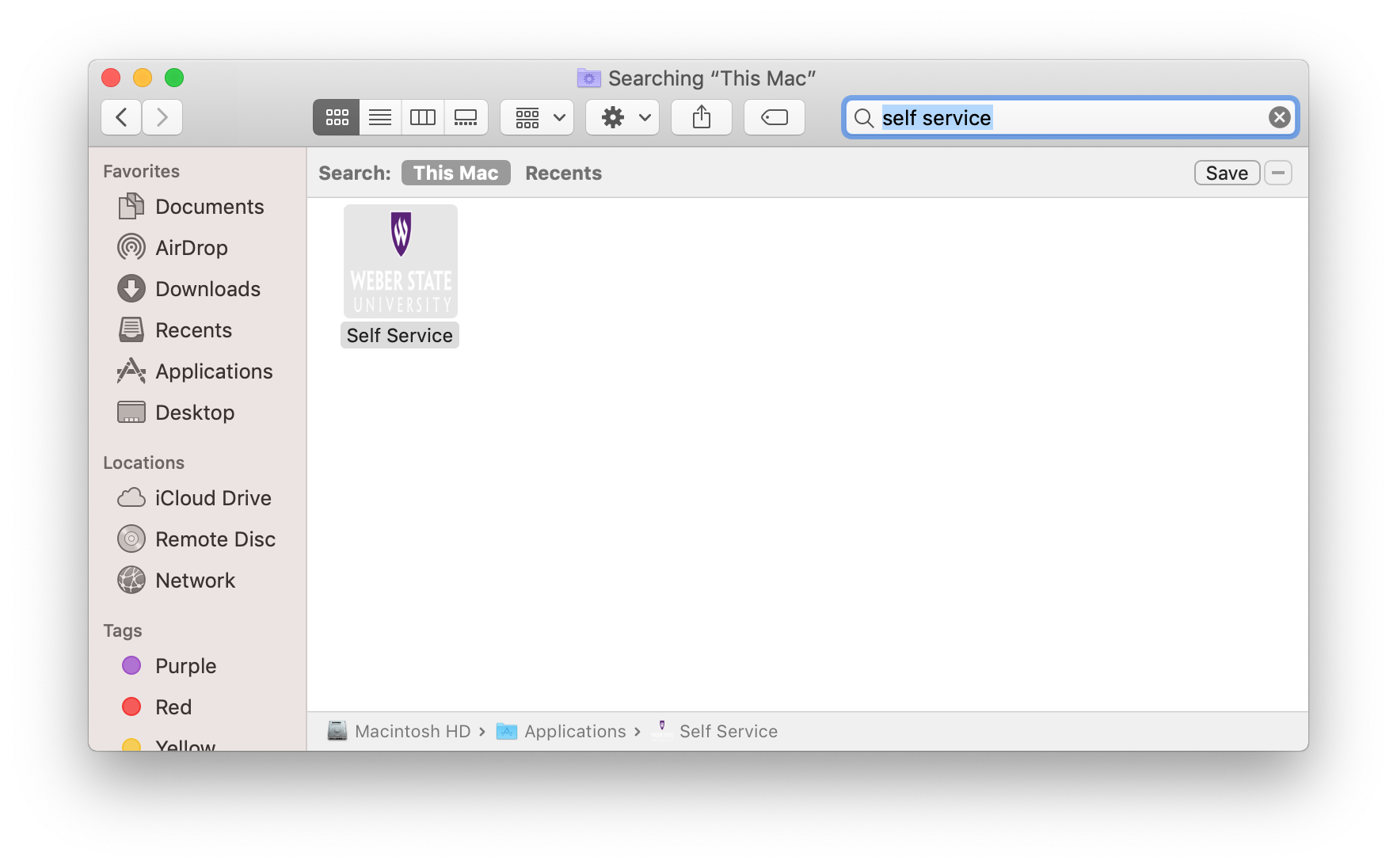
Open a Finder window and type in self service into the search bar. Weber State University Self Service should come up in the results
Step 2
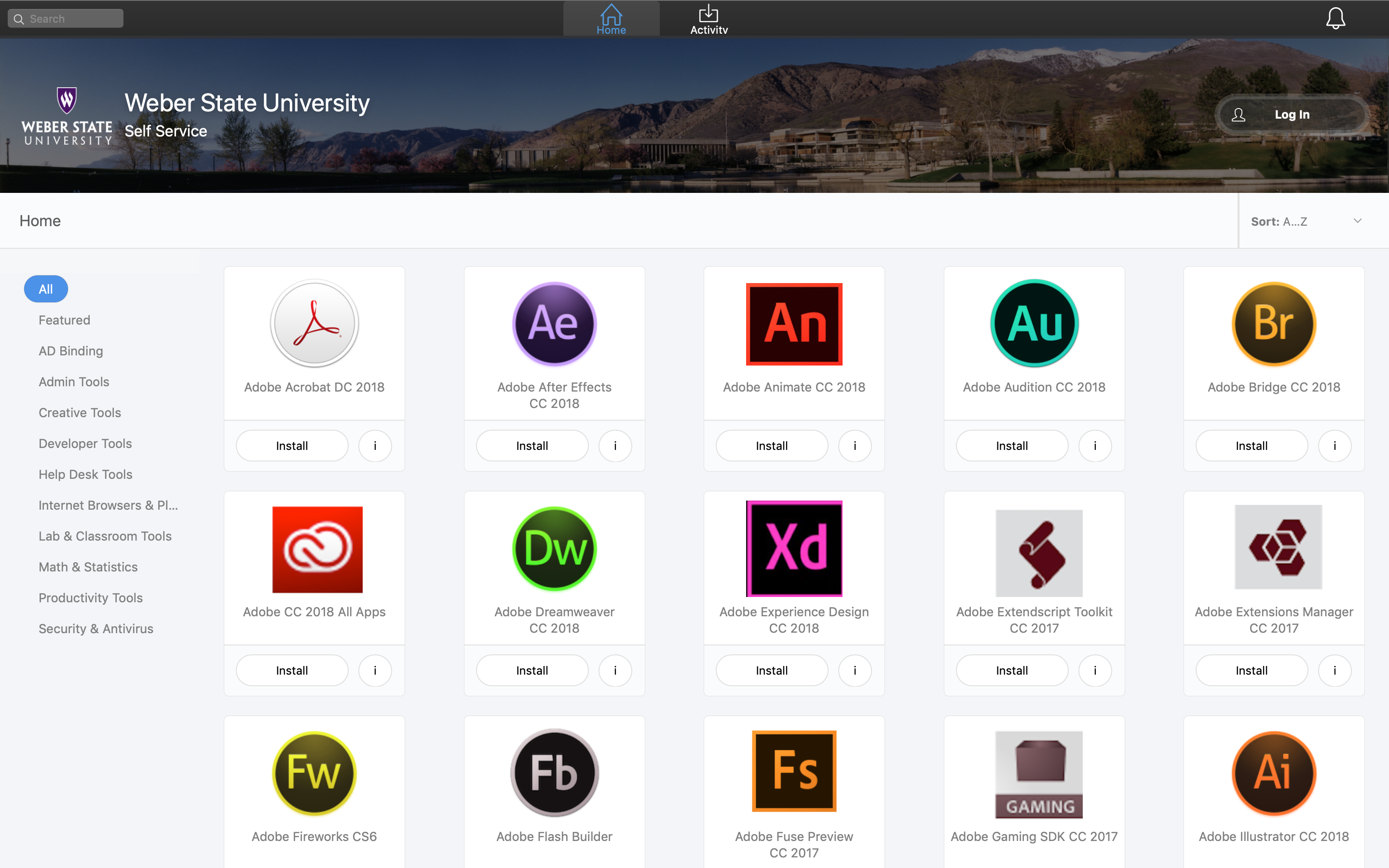
As you enter the app, a new window will pop up with available software.
Step 3
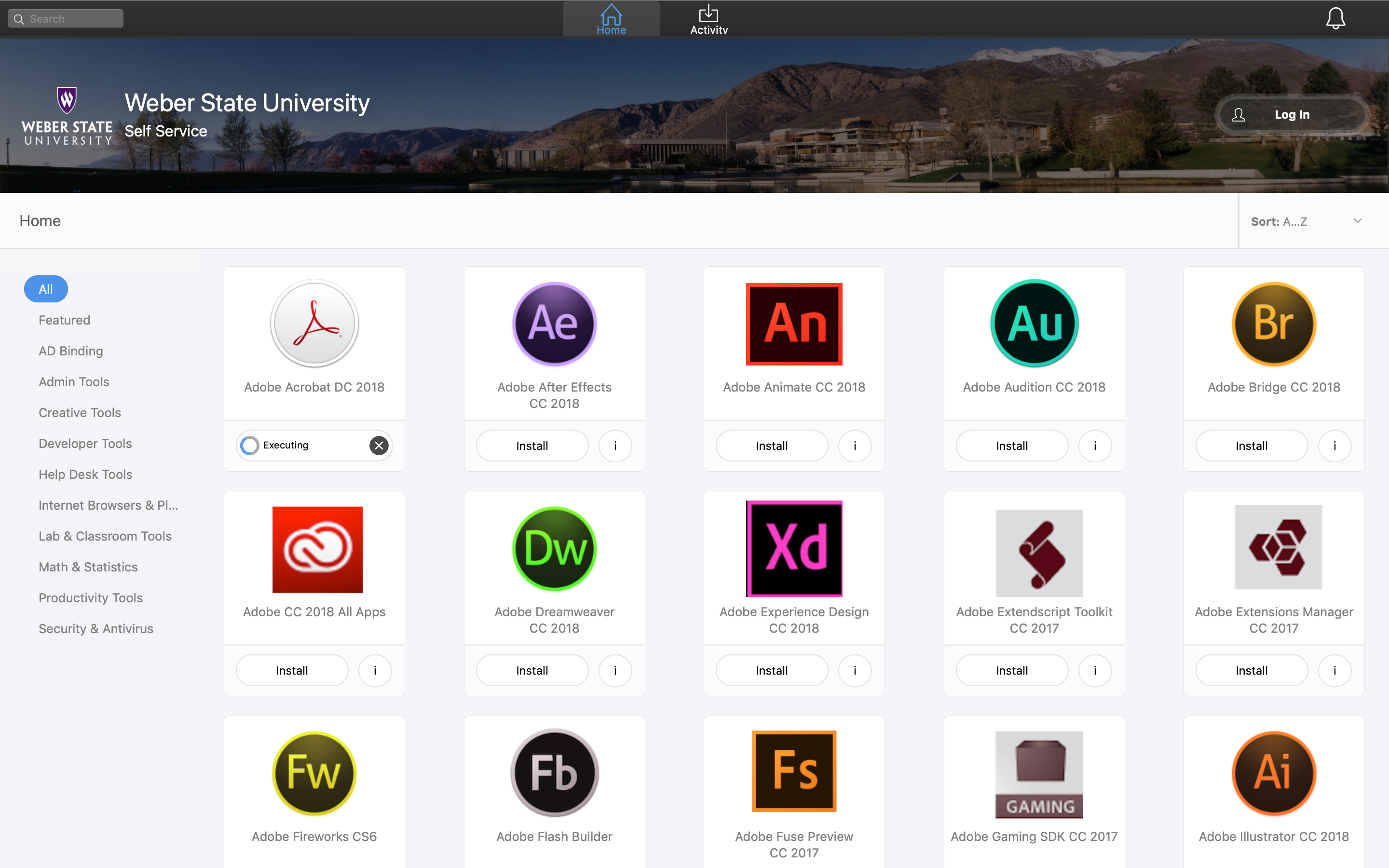
Check the box(s) connected to the software you wish to install. Then press the "install software" button near the end of the page. You can check the status of the installation by clicking on the the Installation Status tab.
Final Step
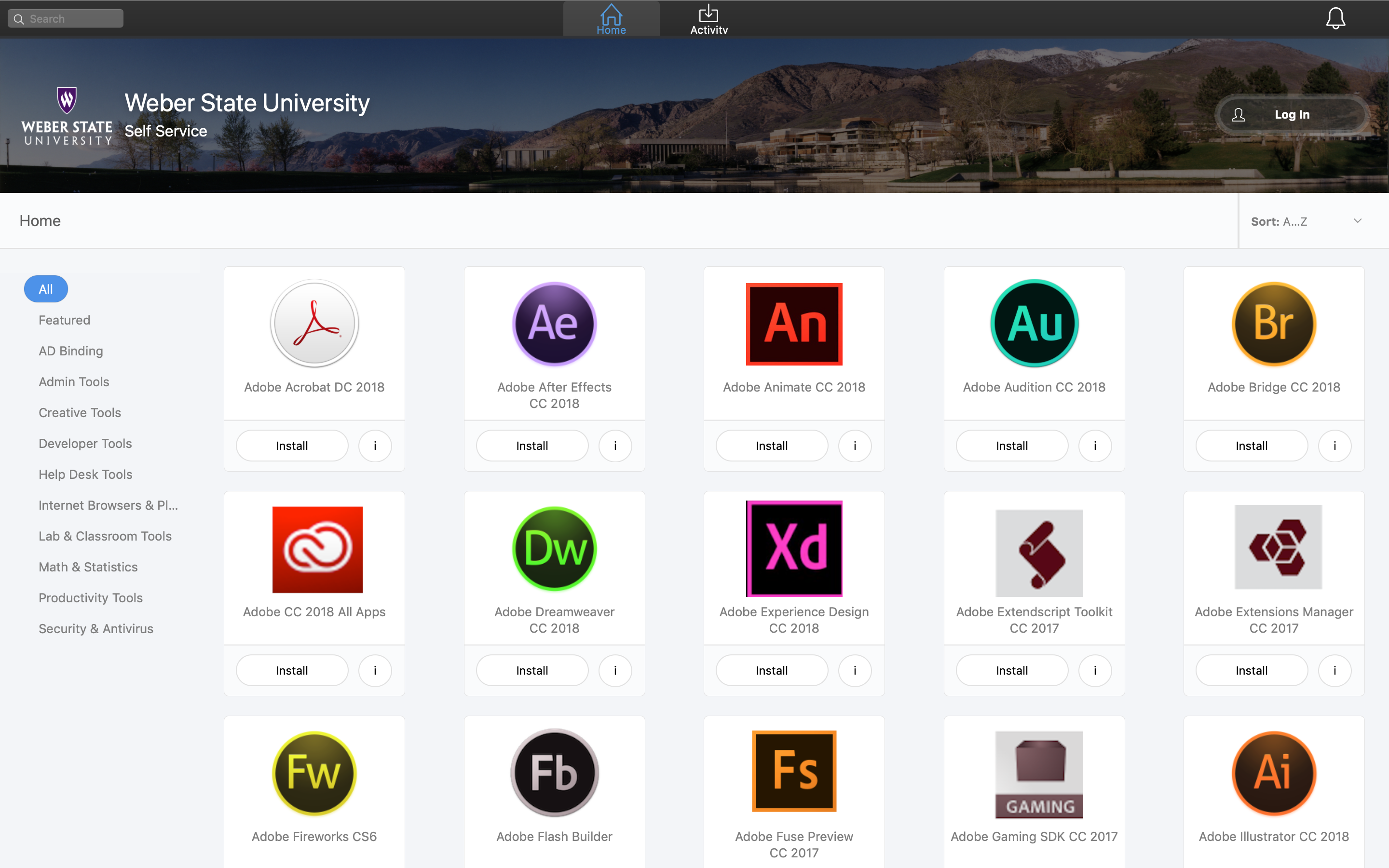
You can view installed software in the tab named Installed Software.
Request software/applications for Self Service
Software requests for faculty and staff can be submitted to cts@weber.edu
Reporting issues with installation or applications completed with Self Service
Software installation or application issues can be submitted to the IT Service Desk csupport@weber.edu or directly to your department’s CTC.