

Faculty Grading Services
Incomplete Grade Form (PDF for departments)Input Final Grades
-
Step 1: Open Faculty Dashboard App
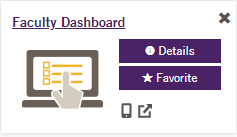
Log into your eWEBER portal and search FACULTY DASHBOARD, choose INPUT FINAL GRADES
-
Step 2: Select a Course for Grade Submission
Once logged into Input Final Grades, your courses will appear at the top of the screen.
- CRN's remain in Input Final Grades for one academic year.
- You can sort your class list to find all current sections requiring final grades.
- Sort by CRN using the search tool in the upper right corner. This will ensure you do not miss any courses assigned to you for the current semester.
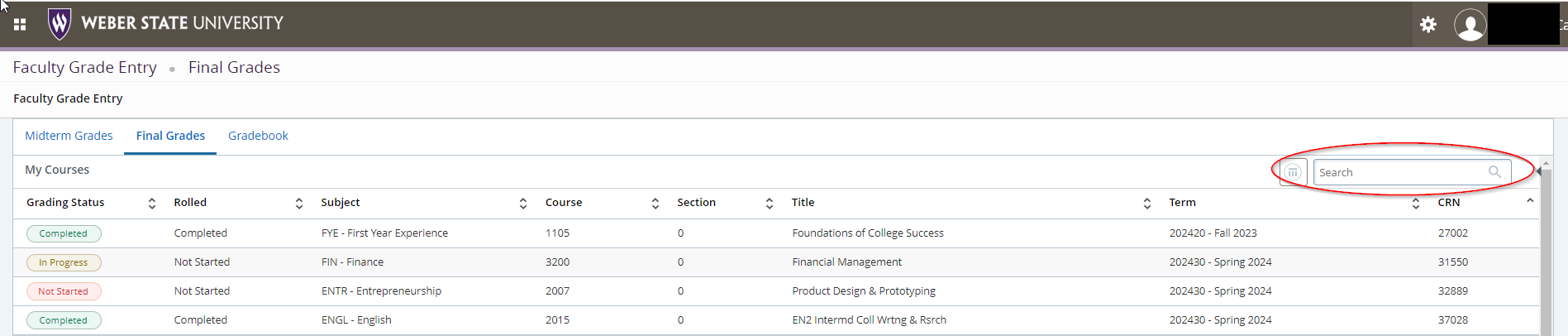
GRADING STATUS and ROLLED Columns:
STATUS Title Status progression Details Grading Status
Red: Not Started
No grades have been entered for this CRN.
Grading Status
Yellow: In Progress
Grading has started. Some, but not all grades have been entered. This may also include Official Withdrawals which have rolled to the student academic history. Withdrawals will display as ungradable.
Grading Status
Green: Complete
All grades have been successfully submitted.
Rolled Status
Not Started
Grades have not rolled to student academic history.
Rolled Status
In Progress
Some grades, but not all have rolled to the student academic record.
Rolled Status
Completed
All grades have been submitted successfully and are rolled to the student academic record.
-
Step 3: Input Grades
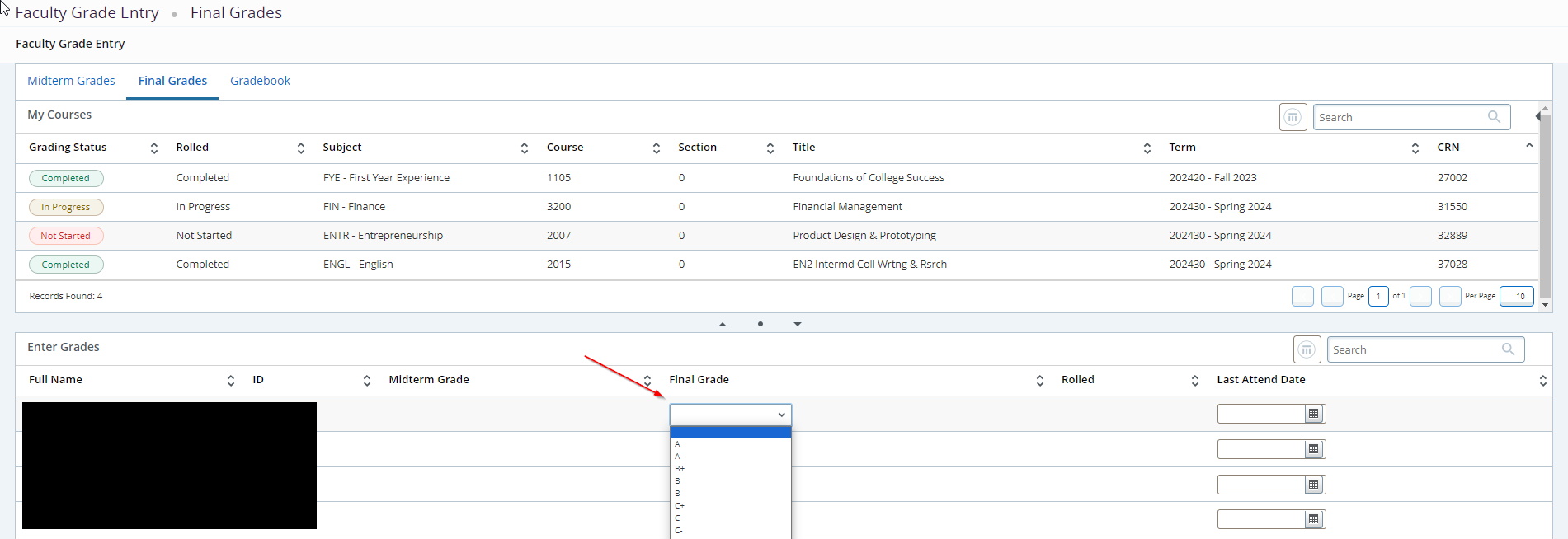
- Click on the course you wish to grade. Your class roster will display below.
- To add a grade, select a student and choose the appropriate grade from the dropdown menu.
- Note that you can only change grades if they have not yet rolled to student academic history.
- When assigning an Incomplete grade, you will be taken into a separate tab, "Incomplete Grades." Here, you will submit the Incomplete Final Grade, which is the grade the student will receive if they do not complete the course within the timeframe you established. The system sets a default extension date of one year. If you choose to change the extension date, please choose a date using the calendar function. Save changes.
- To return to your roster and resume grading, click on the Roster tab.
- When assigning an "E" or "UW" the system requires a Last Attended Date. Use the calendar function to choose the date.
- CLICK the SAVE button often to save your progress.
Grading Standards
-
UW Grades:
If the student simply stopped attending the course then the appropriate grade is a "UW" accompanied by the last date of attendance (i.e. the last date the student attended class, turned in an assignment or took a test).
If the student never attended, the first date of class should be entered as the last date of attendance.
For help determining if a “UW” is appropriate, from PPM 6-3. V.A: “Students who stop attending or engaging in academically related activity in a class, who have not already sufficiently completed course work to pass the class in accordance with criteria established for the course, and who have not officially withdrawn from the course will receive a "UW" (Unofficial Withdrawal) for that class. If attendance is not required to be taken in a class, the student's unofficial withdrawal date shall be the last date the student engaged in an academically related activity. Academically related activities are any of the following activities that are capable of being reasonably documented by the faculty member: attending class, participating in an online academic discussion, turning in assignments, taking a quiz or test, contacting a faculty member with an academic question, participating in an assigned study group, engaging in an interactive tutorial or computer-assisted instruction.”
-
E Grades:
If the student completed all of the necessary coursework, including the taking of the final exam, but was unsuccessful the appropriate grade is an "E" with the last day of class entered as the last date of attendance.
-
I Grades:
"I" grades may be entered electronically like all other grades and require a date indicating when the work will be completed. If the Records Office does not receive a grade change email request denoting the updated grade by the date indicated, a default failing grade or "E" (or another grade as defined by the instructor) will be placed on the student's transcript.
An incomplete is ONLY appropriate under the following conditions:
- The student completed 80% of the necessary coursework AND had extenuating circumstances (i.e. accident, illness, etc.) that prevented the student from completing the coursework by semester's end.
- The student must have a written contract with the instructor regarding the coursework to be completed including the date all assignments are due.
- The student must be able to complete this work WITHOUT RE-REGISTERING OR ATTENDING the course in a subsequent semester.
This document is for use at the departmental level. A copy of the completed document should be provided to the student. Instructors should submit "I" through the faculty online portal.
-
T Grades:
Temporary status is indicated by a "T" and is given for those courses structured to require grading of students to be done in a term subsequent to that one in which the course begins.
All such courses must have the approval of the department offering the courses and the Curriculum and General Education Committee. A letter grade (A,B,C,D,E) or CR/NC must be given by the instructor at the time the required work is to be completed.
If you believe Temporary (T) grades to be appropriate for your course then please reach out to records@weber.edu for more information or instructions.
-
W Grades:
Instructors are not authorized to assign a "W."
A "W" indicates a withdrawal, meaning that the student dropped the course after the third week of the semester. This grade is automatically assigned by the system when the Office of the Registrar removes the student from the course after the third week of the semester. The student is responsible for initiating this process with the Office of the Registrar.
Credit/No-Credit vs Standard Graded Courses
If a course is offered only as credit/no credit, the appropriate grade to submit for students who successfully completed the course and earned credit is an "A" which results in a "CR" (Credit) posted to the transcript.
If the student did not successfully complete the course and should not earn credit then the appropriate grade to submit is an "E" and an "NC" (or No Credit) will post to the transcript.
If a course is offered as a standard graded course, and a student has opted to complete the course on a credit/no credit basis by the university calendar deadline, the appropriate grade to submit is the ACTUAL grade the student earned.
- Students are not required to inform instructors that they have elected to take the course as CR/NC, and the grading system will not indicate a CR/NC grade mode.
- The grading system will automatically convert original standard grades that an instructor submits to the appropriate "CR" or "NC" status.
- A standard grade of A through C- equates to CR (Credit), while D+ through E will result in NC (No Credit).
Audit Courses
If the student attended the course for the entire semester the appropriate grade is an "E" which will post to the transcript as an "AU" or audit.
If the student stopped attending the grade assigned should be an "UW" which will post to the transcript as a "W" or withdraw.
For either grade you are entering, you will also need to enter the last date of attendance for the student.
Changing a Grade
Send an email from your Faculty (Weber State) e-mail address to records@weber.edu with the following information:
- Student Name
- W Number
- Original Grade
- New Grade
- Course Number (e.g. ENGL 1010)
- CRN (the 5-digit course reference number)
- Semester and Year course was taught (e.g. Fall 2014)
Submit a separate email for each student. All emails are scanned to the student file to ensure accurate record keeping.